



How to Make a Searchable PDF

Feb 28, 2020
 77
77
Scan to Email -
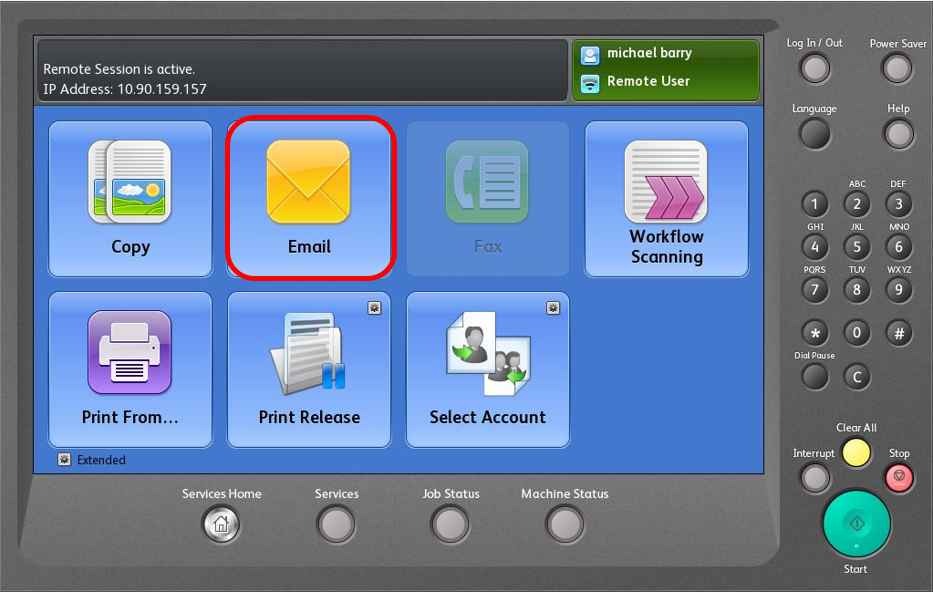
- The first thing you will do in order to make a PDF Searchable is log on to the copier and go to the “Email” Button
Attachment Options -
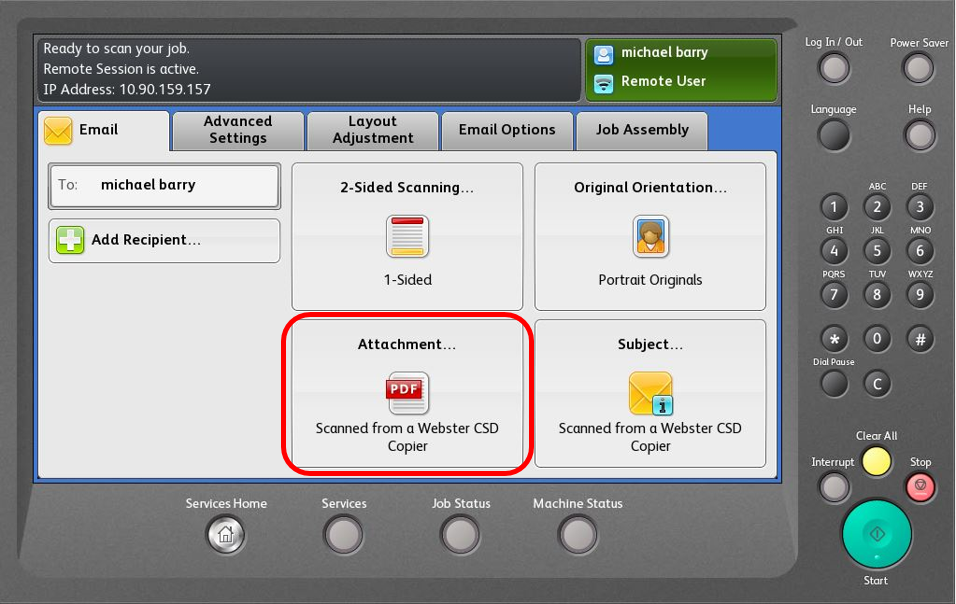
- After you select the “Email” button you will then just select a recipient for your email (which in most cases will just be yourself)
- Once you have picked a recipient you will then want to select the “Attachment…” button in the bottom left-hand corner of the screen
File Types -
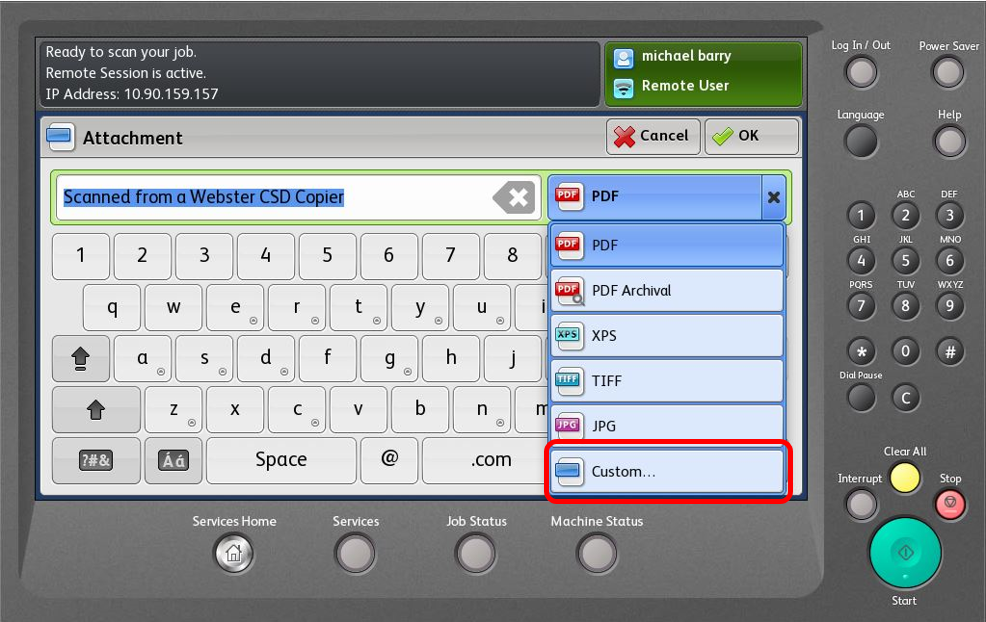
- After you select the “Attachment…” button you will be taken to a screen where you can change the name of the attachment as well as the type of document you want to scan to your email
- If you select the “PDF” dropdown (next to where you change the name), you will be shown a bunch of file option but for now you will want to select “Custom…”
Searchable Option -
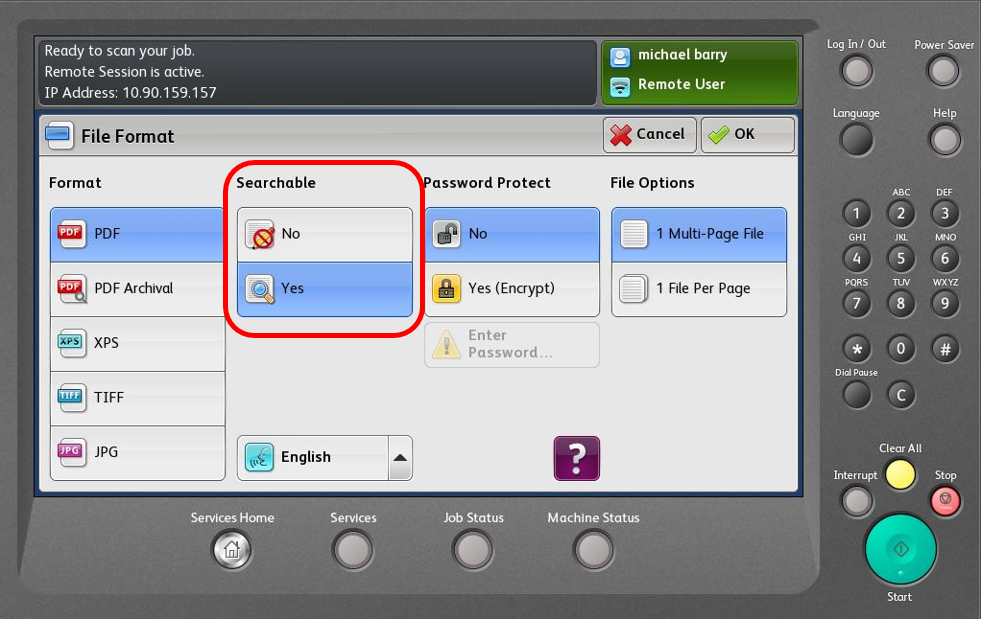
- Once you select “Custom…” you will be taken to a screen with multiple different options for your scan. One of those options is “Searchable”, all you have to do is change that from “No” to “Yes”
- After you change that option just select the “OK” button in the top right-hand corner of the screen. Then just finish the scan to email like you normally would do.
Questions -
- If you have any questions or would like more information please feel free to send an email to [email protected] or call the service desk at 265-6400.


